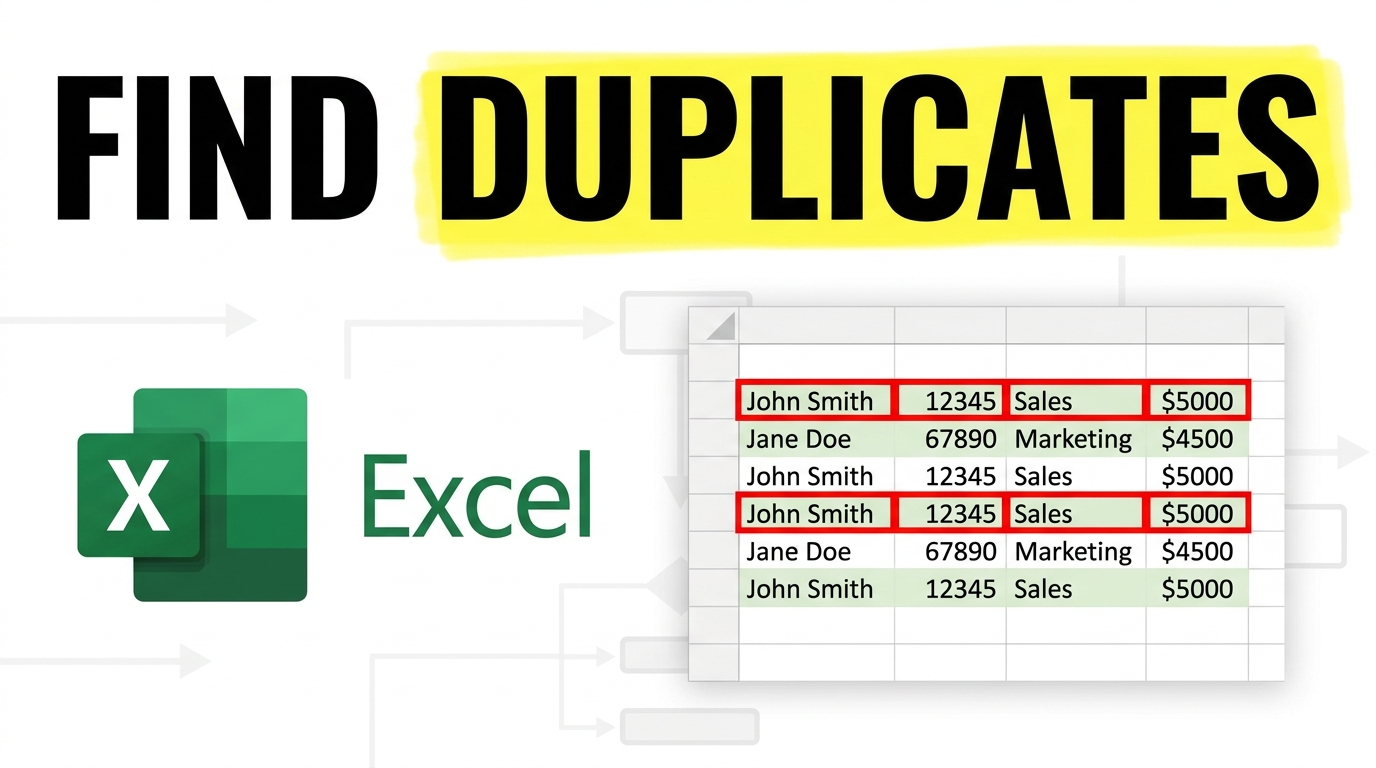
How to Find Duplicates in Excel (Step-by-Step)
Method 1: Using Conditional Formatting (Easiest Way)
- Open your file in Microsoft Excel
- Select the data range where you want to check duplicates
- Go to the Home tab on the top menu
- Click on Conditional Formatting
- Choose Highlight Cells Rules → Duplicate Values
- Select a highlight color (e.g., red or green)
- Click OK
👉 Excel will instantly highlight all duplicate values in the selected range.
Method 2: Using Remove Duplicates Tool
- Select your dataset
- Go to the Data tab
- Click on Remove Duplicates
- Choose the columns you want to check
- Click OK
👉 Excel will remove duplicate values and keep only unique entries.
Method 3: Using Formula (Advanced Method)
- Assume your data is in column A
- In a new column, enter this formula:
=COUNTIF(A:A, A1) > 1
- Press Enter and drag down
👉 If the result is TRUE, the value is a duplicate.
Why This Is Useful
Finding duplicates helps you:
- Clean and organize your data
- Avoid errors in reports
- Maintain accurate records
This method works for lists like names, phone numbers, emails, or any repeated data in Excel.